Authorization Code Grant custom client setup guide
This guide explains how to set up an Entra / Azure custom OAuth client configuration for use with the Authorization Code Grant flow. This is an interactive flow that prompts the user for authorization when initially linking the account. It is the default OAuth flow in most cases.
This feature requires a subscription to Auth-Email's Pro plan.
💡 If you have already set up a custom client for the Client Credentials Grant flow you can skip to the final steps of this guide and reuse the application configuration and client ID / secret when linking with Auth-Email.
1. Create an Entra / Azure application
The first step is to create a new application registration in the Microsoft Entra admin center. This application represents your Auth-Email integration, and will be used to request OAuth tokens for accessing mailboxes.
- Log in to the Microsoft Entra admin center with an administrator account.
- In the left-hand menu, select “App registrations” and then “New registration”.
- 💡 If you are already logged-in to the Entra admin center, you can use this direct link to the new app registration page.
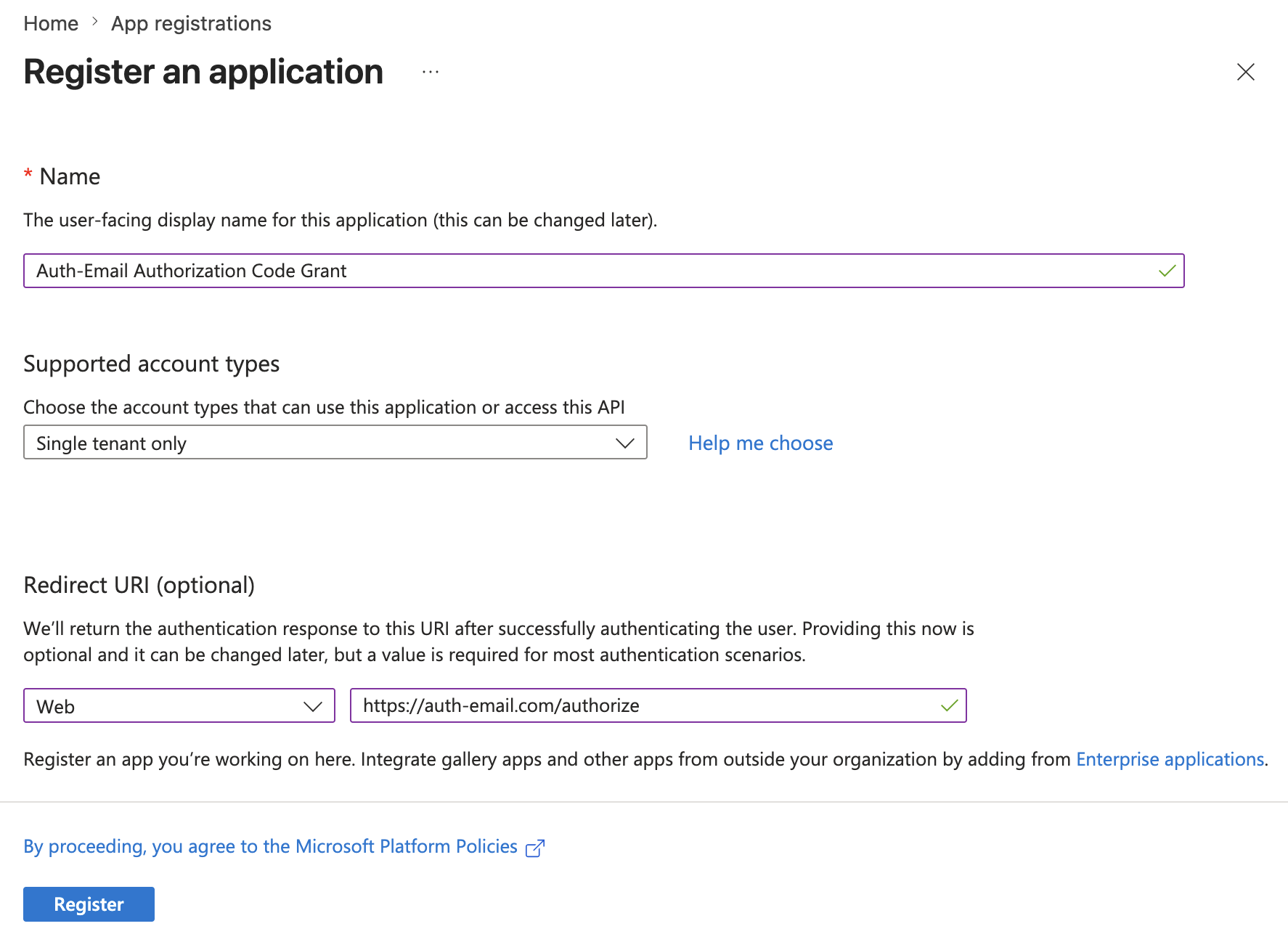
- Provide a name for the new application you will create (for example,
Auth-Email Authorization Code Grant). - For “Supported account types”, select
Single tenant only - {your organization name}. - Choose
Webin the “Redirect URI” field, and enterhttps://auth-email.com/authorize - Click “Register” to create the application.
The following screenshot shows an example registration configuration:
2. Configure and grant permissions
After creating the application registration, you will be redirected to its overview page for further configuration. You can also return here later by selecting “App registrations” from the left-hand menu of the Entra admin center, then choosing your application from the “All applications” list.
- In the left-hand submenu, select “API permissions” and then “Add a permission” (located just above the table of permissions).
- In the popup, select the tab “APIs my organization uses”.
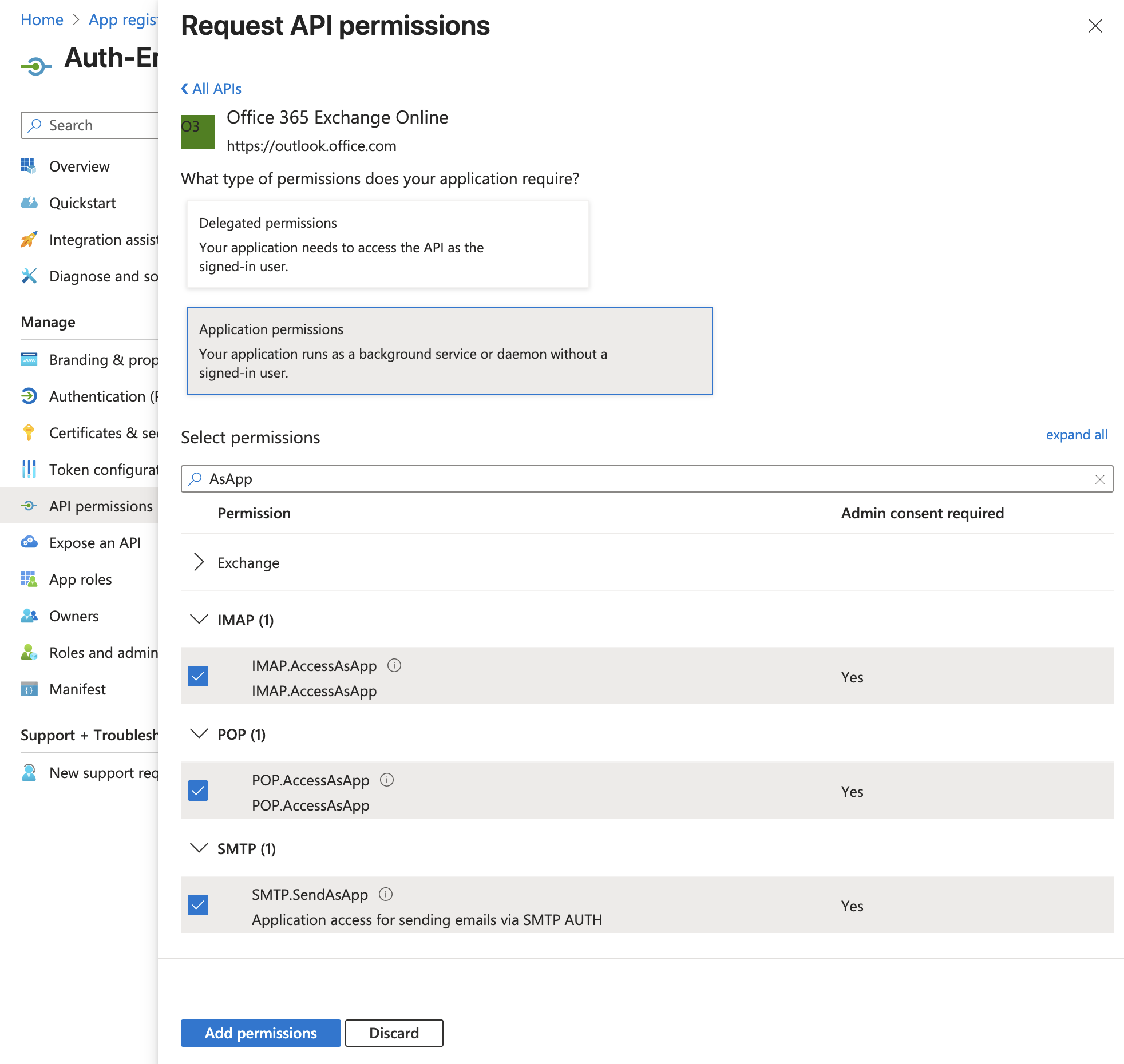
- Find and select
Office 365 Exchange Online, then choose “Application permissions”. - Expand the IMAP, POP, and SMTP sections, and select all of the following permissions:
IMAP.AccessAsAppPOP.AccessAsAppSMTP.SendAsApp- 💡 If you know you will only be using specific protocols, it is fine to add just those permissions.
- 💡 The
User.Readpermission is automatically added to all new applications, but it is not required for access via Auth-Email. You can leave this permission as-is, or remove it if you prefer.
- Click “Add permissions” at the bottom of the panel to save your changes.
The following screenshot shows the API permission configuration, granting IMAP, POP, and SMTP access:
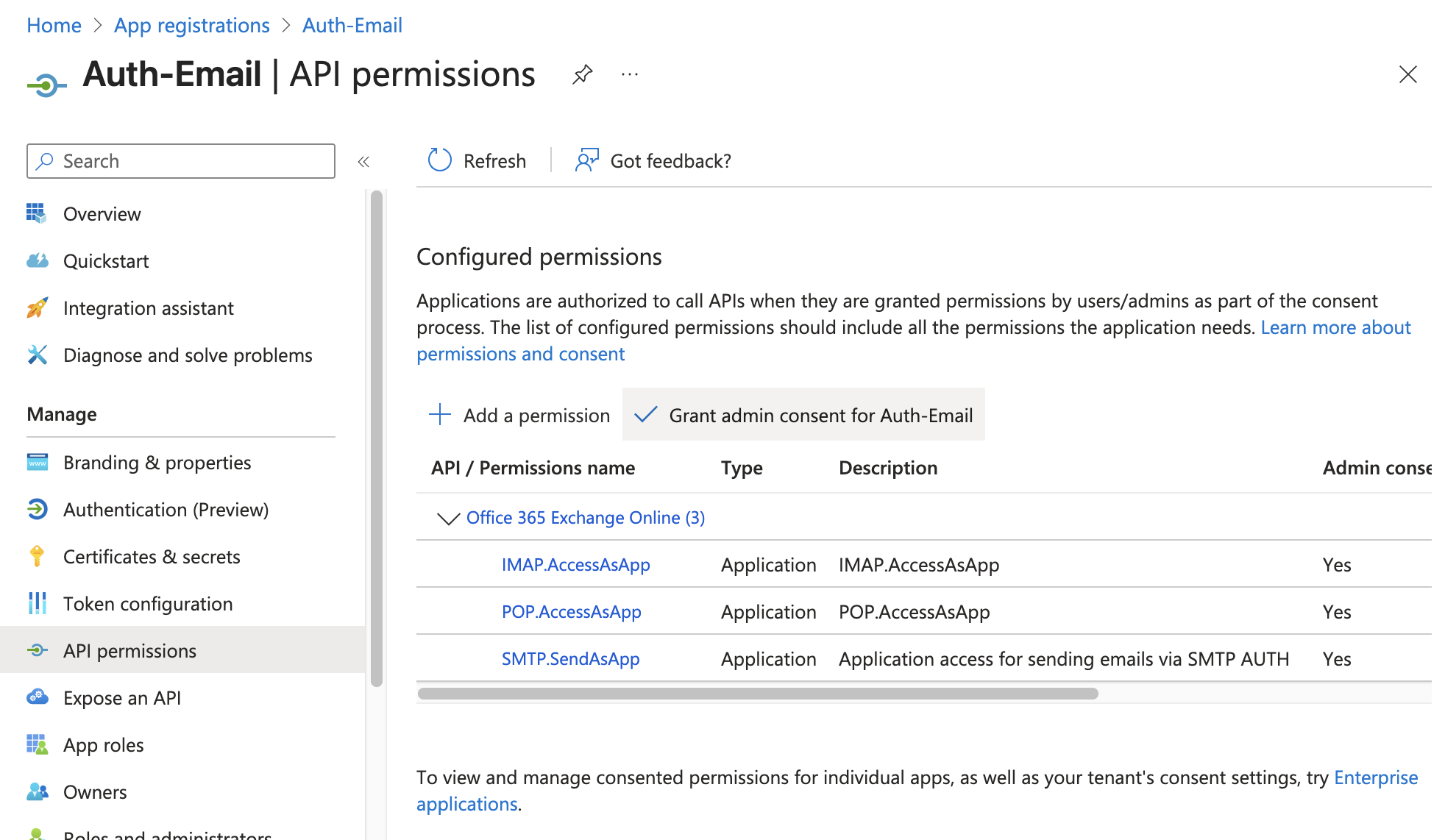
After adding the required permissions, you will be returned to the API permissions overview page for your newly-created application. To allow your application to use the permissions you just selected, admin consent is now needed.
- Click the “Grant admin consent for
{your organization name}” button (located just above the table of permissions, as shown in the screenshot below). - In the confirmation popup, click “Yes” to give consent for the requested API permissions.
3. Create and link a client configuration
The final configuration step is to generate credentials for your newly-created application. Return to the Microsoft Entra admin center, and select the “App registrations” section from the left-hand menu, then choose your application from the “All applications” list.
- In the left-hand menu, select “Certificates & secrets”.
- In the “Client secrets” tab, select “New client secret”.
- Provide a description (for example,
Auth-Email Authorization Code Grant Secret) and select an expiration period. - We recommend including the expiry date in the secret description to help you track when it needs to be rotated.
- Click “Add” to create the client secret. The new client secret will be displayed in the list.
- Copy the “Value” of the client secret and save it for the next step.
- 💡 Important: This value is needed for integrating with Auth-Email. You will not be able to retrieve it later, so make sure you copy and save it now.
- In the left-hand menu, select “Overview” to view the completed application’s details. Keep this page open while you move to the next step.
Now that you have created and authorized the new Entra / Azure application, you can link it with Auth-Email.
- Log in to your Auth-Email dashboard, then visit the Acccount settings page.
- In the “Custom OAuth clients” section, select “Add client”.
- Give the client a name (for example,
{Your organization name} Authorization Code Grant), and selectMicrosoftas the service provider. - In the “OAuth flow / grant“ dropdown box, select
Authorization Code. - Leave the “Permission URL“, “Token URL“, and “OAuth scope“ fields as their default value.
- Enter the “Application (client) ID“ from your Entra application into the “Client ID“ field.
- Enter the client secret value you saved earlier into the “Client secret“ field.
- Click “Add client” to create the custom OAuth client.
Finally: test your setup
You can now select this custom OAuth client when authorizing email accounts in Auth-Email. Instead of proceeding with the default authorization method, choose your newly-created application in the list at the bottom of the Auth-Email account authorization page. You will be prompted to authenticate, then authorize access to link and activate your account.
Once authorization is complete, your account is available to be used with normal IMAP, POP, or SMTP using using its address and the password you just set. See the configuration step of our getting started guide for help setting up your email client if needed.