Enabling SMTP for Microsoft 365 accounts
Microsoft is slowly phasing out the use of basic authentication for SMTP. This is a long process, scheduled to last until at least mid-2027. As part of this transition, Microsoft has started rejecting SMTP connections with the message 535 5.7.139 Authentication unsuccessful, SmtpClientAuthentication is disabled for the Tenant. Visit https://aka.ms/smtp_auth_disabled for more information.
If your organization has previously been using SMTP without issues, you might have inadvertently triggered this error by making a change to your organization’s security defaults. You might also encounter this message if your organization has not previously used SMTP, or if you try to use SMTP with a new account that has not previously been used to log in to Microsoft 365. This message can also be triggered if you have changed the SMTP AUTH setting for your organization or for individual user accounts.
In any of these cases, you will receive an automatic email notification the first time you try to use SMTP via Auth-Email, explaining that that SMTP is not enabled by your mail provider. Follow the instructions below to enable SMTP access and get your account working with Auth-Email.
💡 Microsoft uses the term
SMTP AUTHto refer to both OAuth-protected and basic password-protected SMTP access, which can be confusing. Auth-Email is fully compatible with security defaults in Microsoft Entra ID. You do not need to enable basic (password-based)SMTP AUTHto use Auth-Email.We recommend you follow Microsoft’s guide to create an authentication policy to block basic password-based authentication on all protocols.
How to (re-)enable SMTP access for a Microsoft 365 account or Exchange Online mailbox
💡 Access configuration changes can take a long time to propagate through Microsoft’s network. It typically takes a lot longer for access to be unblocked than it does for it to be blocked.
To minimize frustration, wait at least 1 hour after trying any of the steps listed here before trying to use SMTP again.
The easiest way to enable SMTP access for a single account or mailbox is to use the Microsoft 365 admin center:
- Visit the Microsoft 365 admin center Active users page and find the user in question
- Select the user, then choose the “Mail” tab in the popup, and click the “Manage email apps” link
- Make sure that the “Authenticated SMTP” option is checked, as shown in the following screenshot, then click “Save changes”
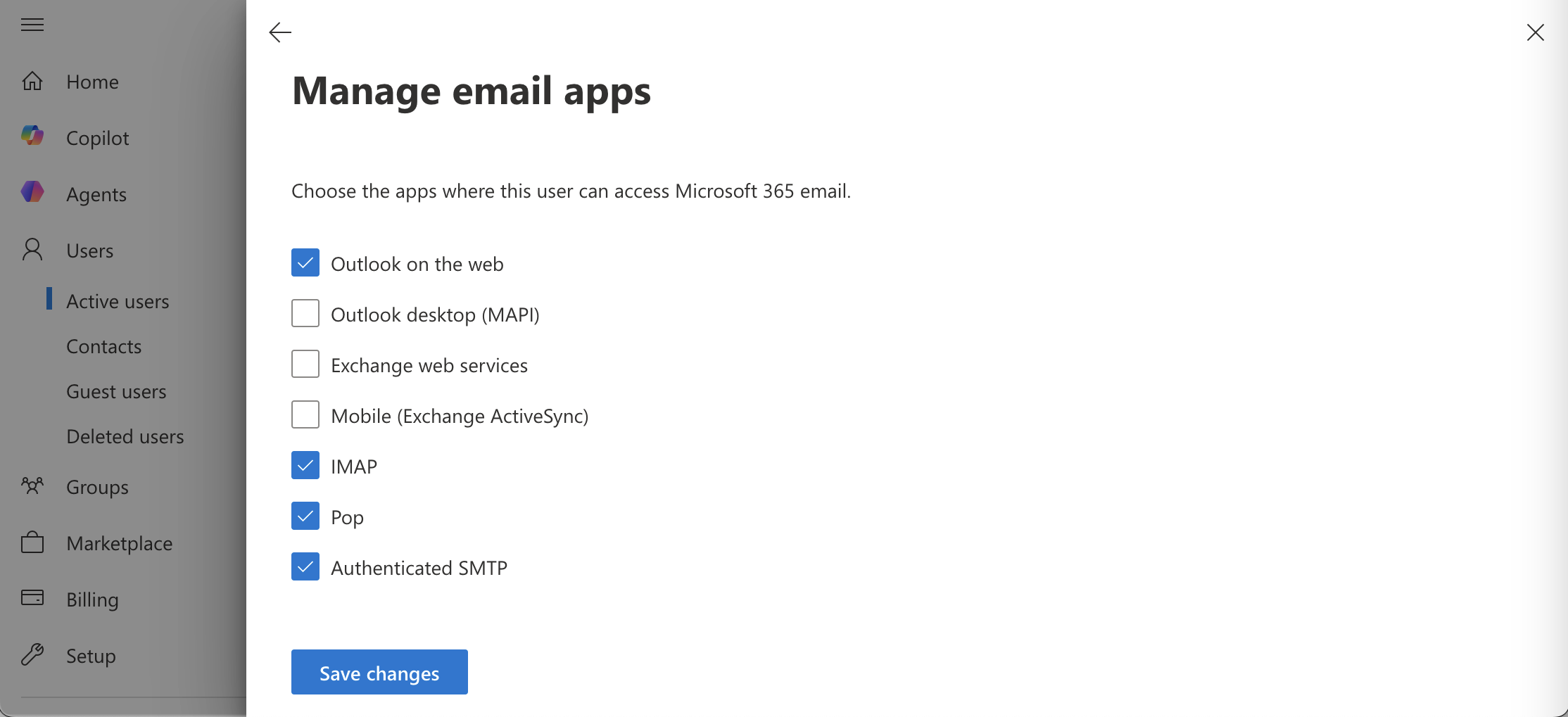
The Manage mailboxes page in the Exchange admin center also has an option to manage user email apps, but it does not include the ability to enable SMTP. Use the Microsoft 365 admin center instead as explained above.
(Re-)enable SMTP access for an entire Microsoft 365 tenant or organization
To configure SMTP access for an entire Microsoft 365 tenant or organization at once, use the tenant-wide Mail flow settings in the Exchange admin center:
- Visit your Exchange admin center’s settings page
- Choose the “Mail flow” option from the list, then scroll down to the “Security” section
- Make sure that the checkbox labelled “Turn off SMTP AUTH protocol for your organization” is unchecked, then click “Save”
If you have configured SMTP access for an individual user account, this will override the organizational SMTP AUTH setting. To reset SMTP access to the organization-level setting for any accounts that have previously been customized at the user level, use PowerShell as explained in the next section.
Use PowerShell to configure SMTP AUTH status
These instructions assume you have already installed the Microsoft 365 PowerShell module and connected to your tenant. If you have not done this yet, follow the instructions in our Microsoft 365 client credentials grant setup guide to configure PowerShell to connect to Exchange Online.
- To view the current SMTP status for your organization, use the following command:
Get-TransportConfig | Format-List SmtpClientAuthenticationDisabled- If the command returns
SmtpClientAuthenticationDisabled : True, then SMTP is disabled for your organization. You will need to change this setting at either the organization level or at the user level to use SMTP with Auth-Email. See the next step of this guide for instructions on how to do this. - If the command returns
SmtpClientAuthenticationDisabled : False, then SMTP is enabled for your organization. SMTP will work for any user accounts that have not been individually configured to disable it.
Enable SMTP at the organization level using PowerShell
- To to enable SMTP for your organization, use the following command:
Set-TransportConfig -SmtpClientAuthenticationDisabled $false
- To to disable SMTP for your organization, use the following command:
Set-TransportConfig -SmtpClientAuthenticationDisabled $true
💡 The SMTP status at the organization level is overridden by individual user level configurations. See the next section for instructions on how to reset user accounts to inherit the organization setting.
Configure SMTP status at the user level using PowerShell
- Run the following command to view the current SMTP status for a user account:
Get-CASMailbox -Identity {[email protected]} | Format-List SmtpClientAuthenticationDisabled- Before running the command, replace
{[email protected]}with the address of the user account you want to check. - The output of the command is the same as described above for the organization-level command, showing whether SMTP is enabled or disabled for that account.
- If the command returns
SmtpClientAuthenticationDisabled :(i.e., no value), then the account is inheriting the organization-level setting.
To configure SMTP access at the account level, use one of the following commands. In all cases, before you run the command, replace {[email protected]} with the address of the user account you want to configure:
- To enable SMTP for a user, overriding the organization-level setting, use the following command:
Set-CASMailbox -Identity {[email protected]} -SmtpClientAuthenticationDisabled $false
- To disable SMTP for a user, overriding the organization-level setting, use the following command:
Set-CASMailbox -Identity {[email protected]} -SmtpClientAuthenticationDisabled $true
- To reset a user’s SMTP status to inherit the organization-level setting, use the following command:
Set-CASMailbox -Identity {[email protected]} -SmtpClientAuthenticationDisabled $null
For more discussion of the PowerShell commands used in this section, and examples of applying configurations to multiple accounts at once, see Microsoft’s documentation pages.
Troubleshooting SMTP access issues with Microsoft 365
💡 If you still cannot access your account using SMTP after following the instructions above, make sure you have waited at least one hour since making any changes, then try again.
If this still does not resolve the issue, make sure the user in question has logged in to the account at least once (which may not always be the case for new or shared access accounts)
Still having trouble? Contact us at [email protected] – we’re happy to help!